
Last reviewed: 2026-08-30. The software and published packages may have changed since this review. Check the current releases and compatibility notes before using this guide with important data.
Navigation instructions and synthetic screenshots reflect the reviewed source implementation; published APKs may differ.
The Android Calendar workspace reads and writes events through CalDAV. It offers touch-first month, week, and agenda views, preserves useful cached content during refresh, and enables mutation controls only when the selected calendar and event provide the required write evidence.
Step 1 Browse a month and switch to the agenda
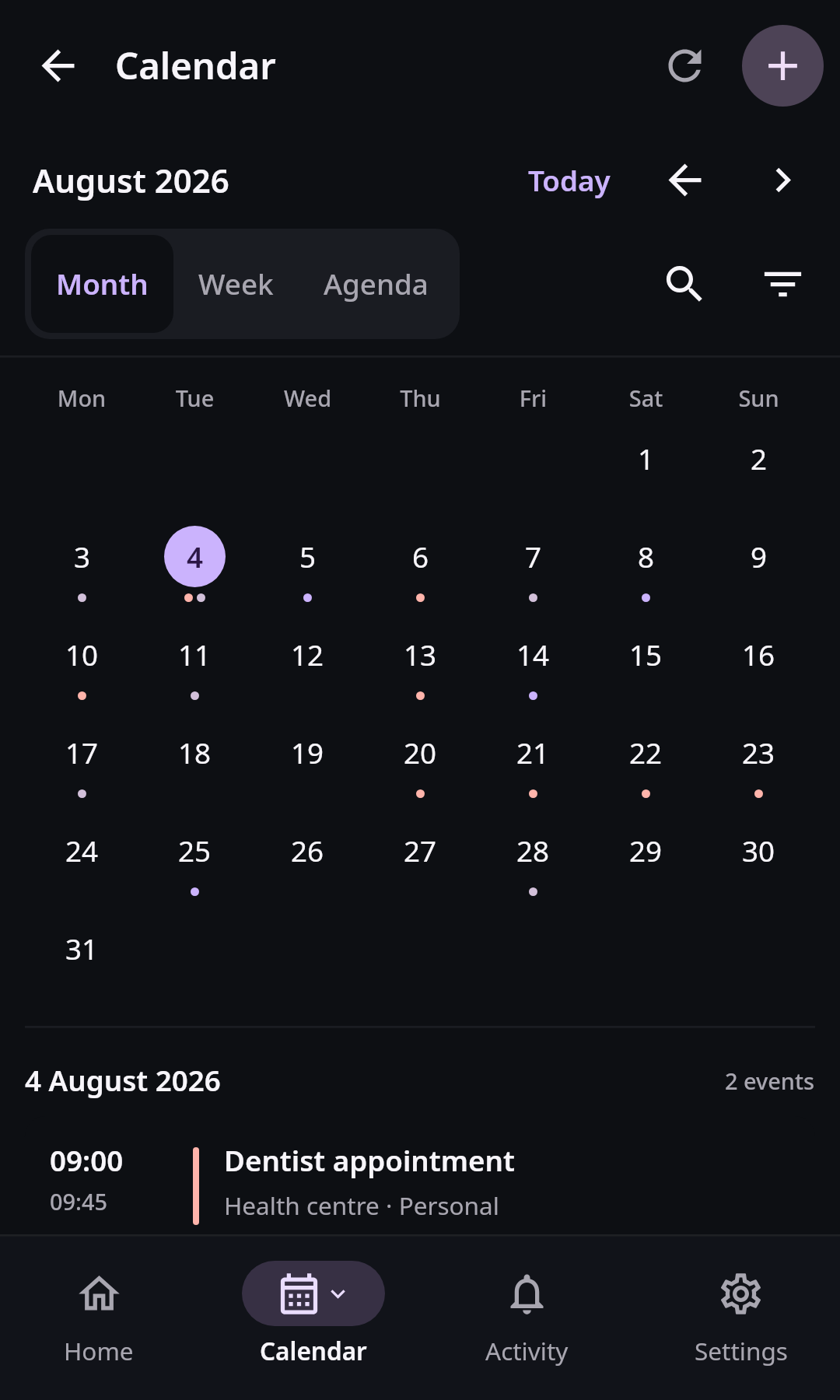
The compact Android month view keeps date navigation and event context touch-friendly without stretching the desktop layout onto a phone. Synthetic data in real Compose UI Next: Create an event in a writable calendarOpen Calendar from Apps or a pinned shortcut. Use the previous and next controls to change month and Today to return to the current date. The selected date is filled; today's date has an outline when it is not selected. Select a day to see time-first event rows below the grid. Week shows seven selectable days and the selected day's schedule. Agenda lists the loaded events chronologically. Multi-day events appear on every covered date, with an all-day event's exclusive end date left out.
Use search to narrow loaded events. The calendar filter opens My calendars, where named checkboxes control which calendars appear. Hiding a calendar changes only this view; it does not delete events. Calendar names remain available in event rows so meaning does not depend on color alone.
Refresh keeps the last matching in-memory result visible while CalDAV reloads. If refresh fails, the previous content can remain on screen with a retry message. Treat it as potentially stale until retry succeeds. Android restores the selected month, date, and view through ordinary activity recreation, but you should still confirm server state before an important edit.
Step 2 Create an event in a writable calendar
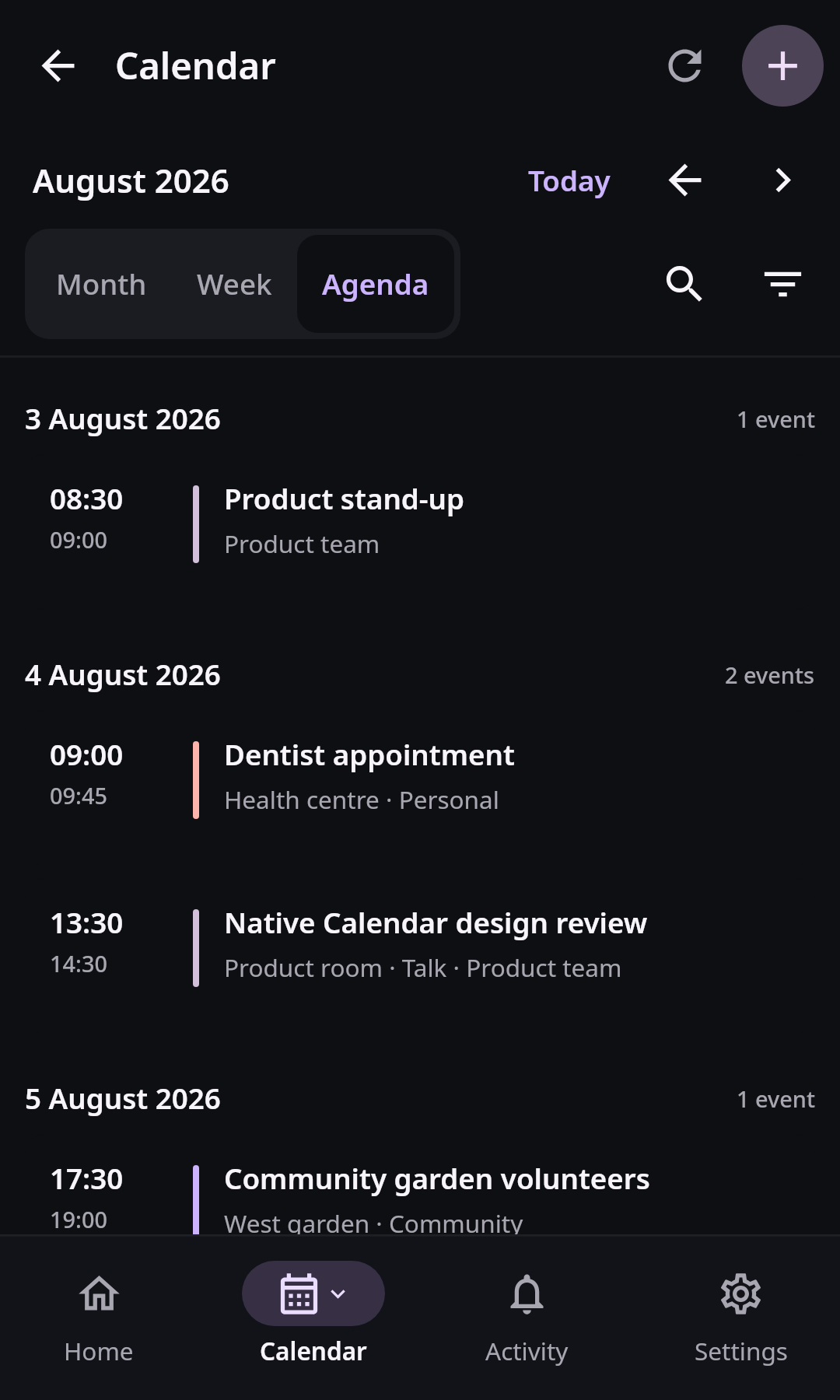
Agenda prioritizes readable event order on a phone while the add action remains disabled when no writable calendar is available. Synthetic data in real Compose UI Next: Edit or delete only an authoritative event or seriesChoose the add action in the Calendar header. Enter a title, then complete Schedule. Choose the date using the calendar button or type YYYY-MM-DD. For a timed event, choose start and end times with the clock buttons or type them; editor times are shown and submitted in UTC. For an all-day event, enable All day. Open Repeats to choose no recurrence, daily, weekly, monthly, or a validated custom rule. Add a location or description when useful, then select the intended calendar if more than one writable source exists.
Save once and wait for the CalDAV result. A successful response triggers a fresh read. If the connection result is unknown, do not create a duplicate immediately. First refresh the target date and calendar to see whether the event exists.
Step 3 Edit or delete only an authoritative event or series
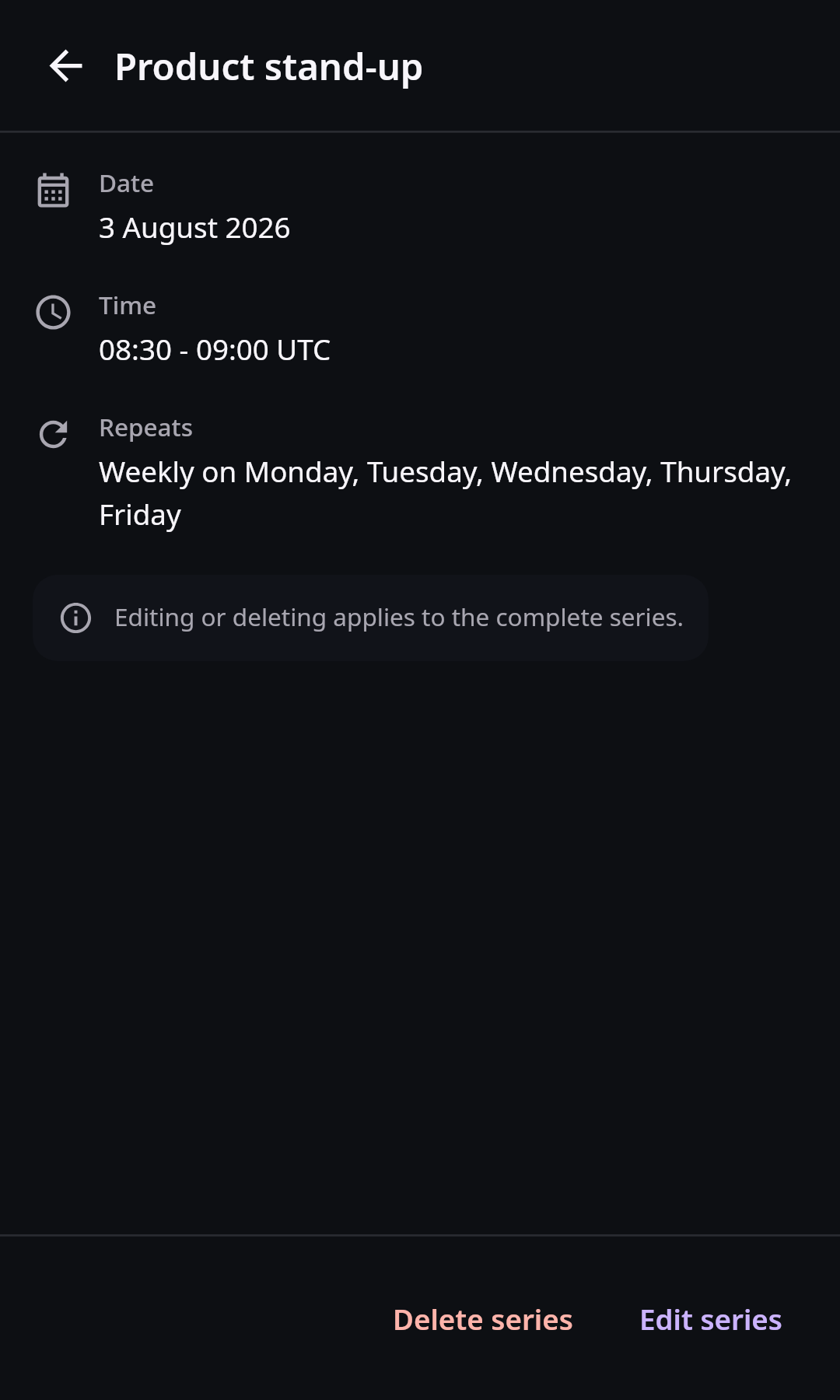
Android exposes edit and delete only for writable events with an ETag, and recurring occurrences direct changes to the authoritative series. Synthetic data in real Compose UI Open an event. Editing is available only when its calendar is writable, its current ETag is known, and the row is not a generated recurrence occurrence. A generated occurrence is read-only to protect the series. Open the authoritative series to use Edit series or Delete series; deleting a repeating event permanently removes the complete series.
Updates and deletes send the current ETag as a precondition. If another client changed the event first, refresh and review that version before applying your intent again. Read-only subscribed calendars remain browsable but do not expose mutation actions.
Open an event to view its details on a page. Edit or Edit series changes that page into the shared editor, without opening another modal. Back returns to the event details and asks before discarding a changed draft. Creating an event and choosing dates or times still use dialogs.
The phone and desktop editor share validation, recurrence and calendar selectors, and date/time fields. Save and Cancel remain outside the scrolling form. Edit series states that changes apply to the complete recurring series. These controls do not enable editing a generated occurrence.